Telegram bot bePaid
Any merchant who has an active shop in bePaid system as well as a shop bot in Telegram, can connect bePaid bot for accepting the payments in Telegram app.
Technical constraints and requirements
-
To integrate the payment processing bot, the merchant needs to create a shop bot using Bot Payments API. Example of a demo shop bot from Telegram. Before starting to accept the payments, the merchant must fulfill all the requirements listed in the Live Checklist.
-
Payment with a bot is possible only in the Telegram apps on mobile and desktop devices. Payments with bots are not supported in Telegram Web.
-
You can use bePaid bot to pay for the physical goods and services. See details in Google and Apple payment policies.
-
bePaid bot can process payments made with payment cards. Payments with the alternative payment methods such as ERIP are not supported.
-
Payments with Apple Pay, Google Pay and Samsung Pay are not supported in the current version of the bot.
Integrating the shop bot with bePaid test bot
Any merchant who has a shop bot that can send invoices can use test bePaid bot. The merchant doesn't need an active shop in bePaid system to test the payment flow with the bePaid test bot.
Follow the steps below:
1) Go to @BotFather in Telegram.
2) Select the shop bot in the list of your bots.
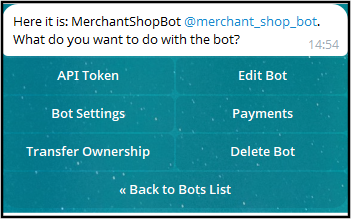
3) Click Payments
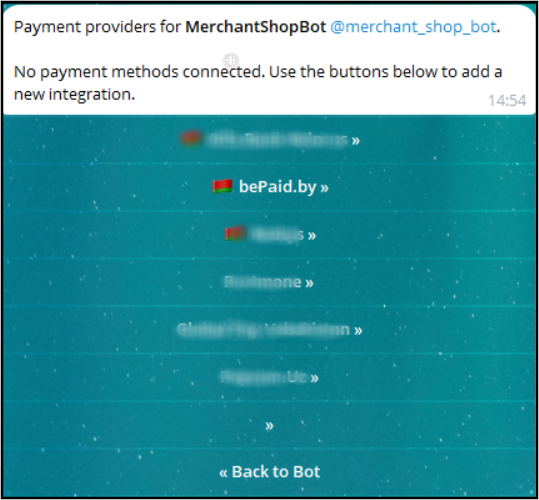
4) Select bePaid.by
5) Select @BePaidPaymentTestBot which is the test payment bot (Connect bePaid.by Test).
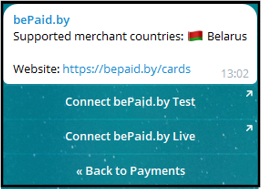
You will then be redirected to the bePaid bot where you need to follow the instructions:
6) Submit the ID of the test shop. The value will be provided in the bot's message.
7) Submit public_key of the test shop. The value will be provided in the bot's message.
The merchant will then receive a token in @BotFather that is required for the integration.
8) The received token must be specified as provider_token in the shop bot project.
9) Make a test payment in your shop bot. Use the test cards from the table below to make a successful payment.
| Card brand | Card number | 3-D Secure authentication |
| Visa |
4012000000001006

COPIED
|
not required |
| Visa |
4012000000001097
COPIED
|
required |
| Mastercard |
5204240000015003
COPIED
|
not required |
| Mastercard |
5204240000015029
COPIED
|
required |
Payment flow
Pay attention that the flow may be different depending on your shop bot configuration.
1) The customer initiates the purchase in the shop bot – the product invoice is displayed to the customer.
Alternatively, the merchant may publish the product invoice in their public channel. In this case each subscriber to the channel can purchase a product.
2) The customer clicks the payment button.
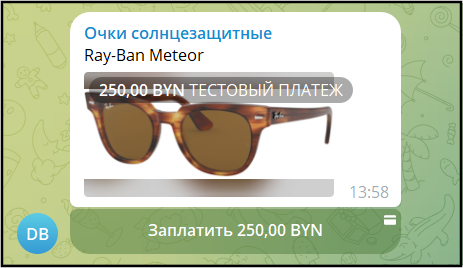
3) This opens the checkout window. The data that needs to be submitted by the customer prior to submitting the card data is set up in the shop bot. For example, the customer may need to fill in the delivery address and select the delivery option.
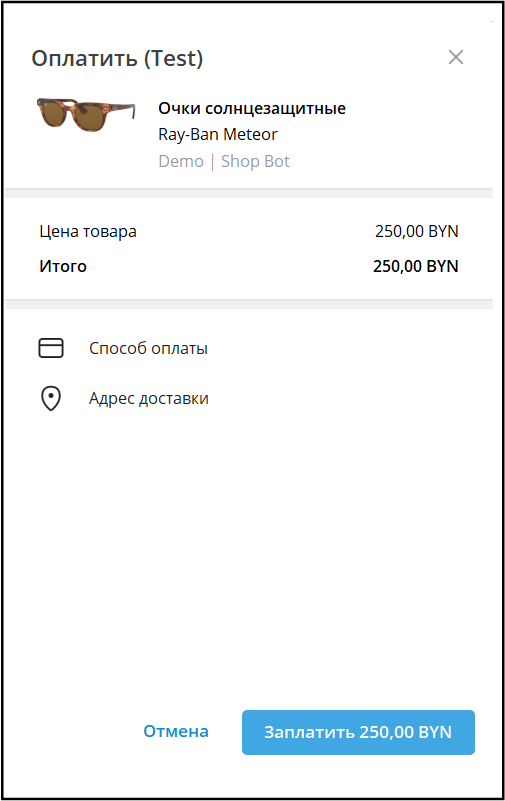
4) The customer submits the required information, for example, the delivery address.
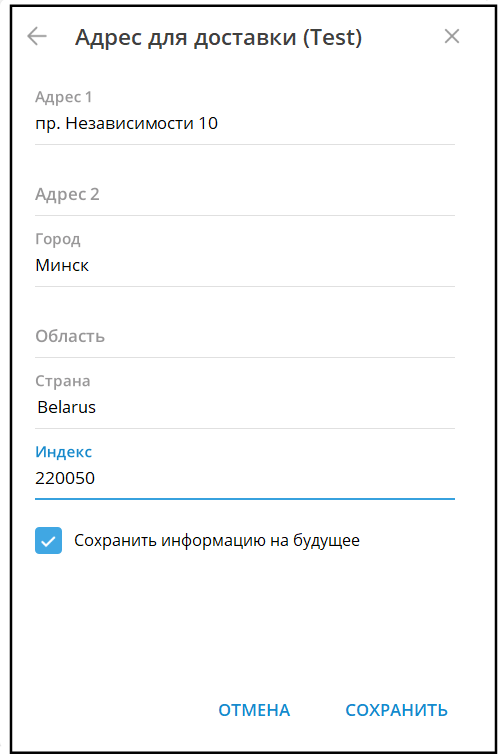
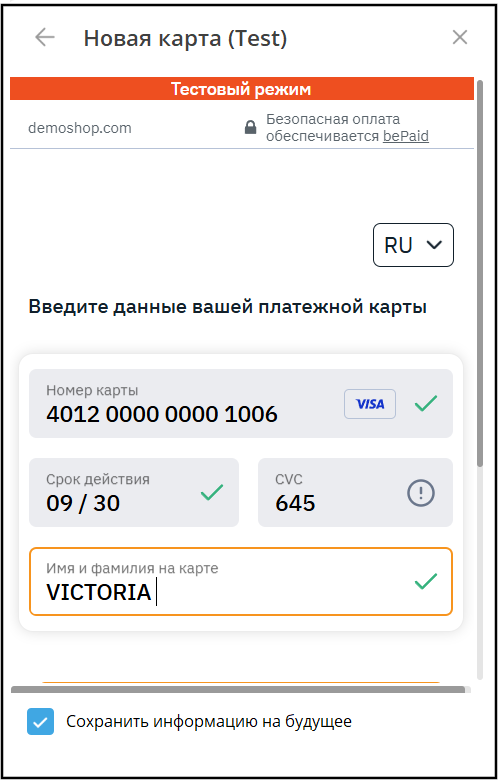
5) Selecting the payment method or clicking the payment button will open bePaid widget, provided the other required data have been submitted. The customer submits their card data and optionally saves the card. The card is saved in bePaid system.
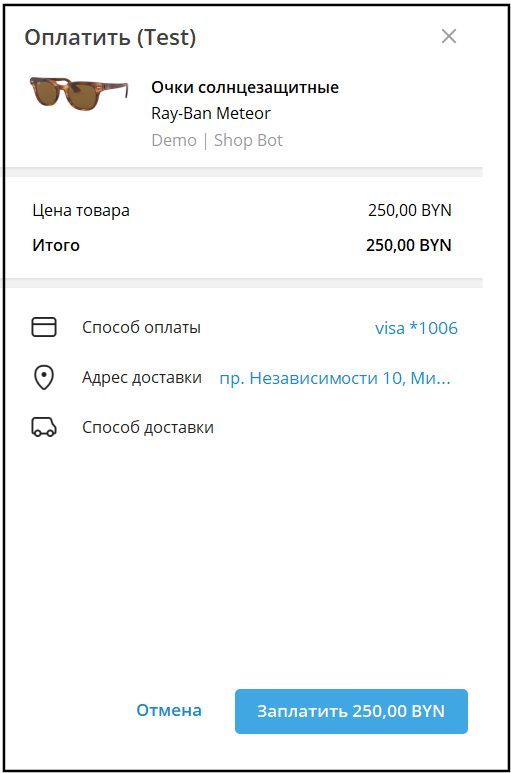
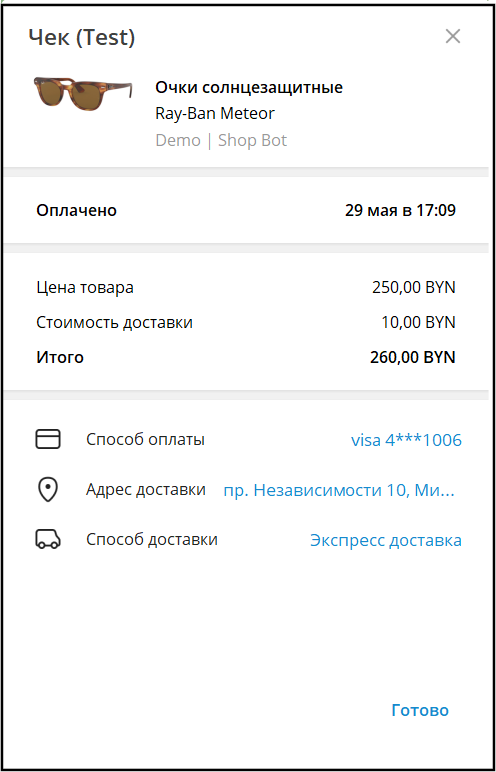
6) Once the card data is submitted, the checkout window will display the card mask.
7) Once the payment is processed, the customer will get a message in the shop bot (the message settings are configured in the shop bot). If the payment was initiated in the shop bot (not in the public channel), Telegram will also form a receipt for the customer.
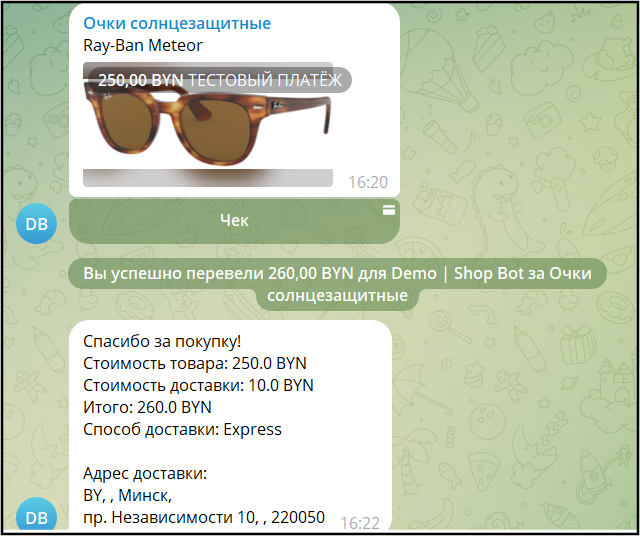
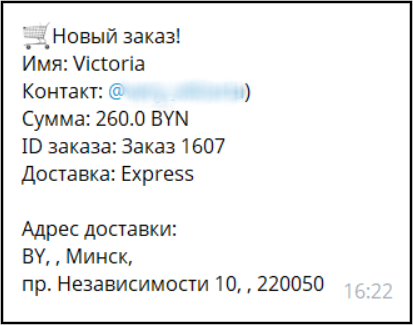
8) The merchant receives a message with the transaction information in their shop bot. The data sent in the message is configured in the shop bot. For example, the merchant can set up the user's Telegram ID to be added to the message.
Integrating the shop bot with bePaid test bot
Follow the same steps as in Integrating the shop bot with bePaid test bot, but in step 5 select live bot @BePaidPaymentBot.
Аnd in steps 6–7 submit the ID and public_key of your shop. If the shop is active, the merchant will receive the token of bePaid live bot in @BotFather. Once the token is specified as provider_token in the shop bot project, the merchant can start processing the transactions with @BePaidPaymentBot.